Time clock
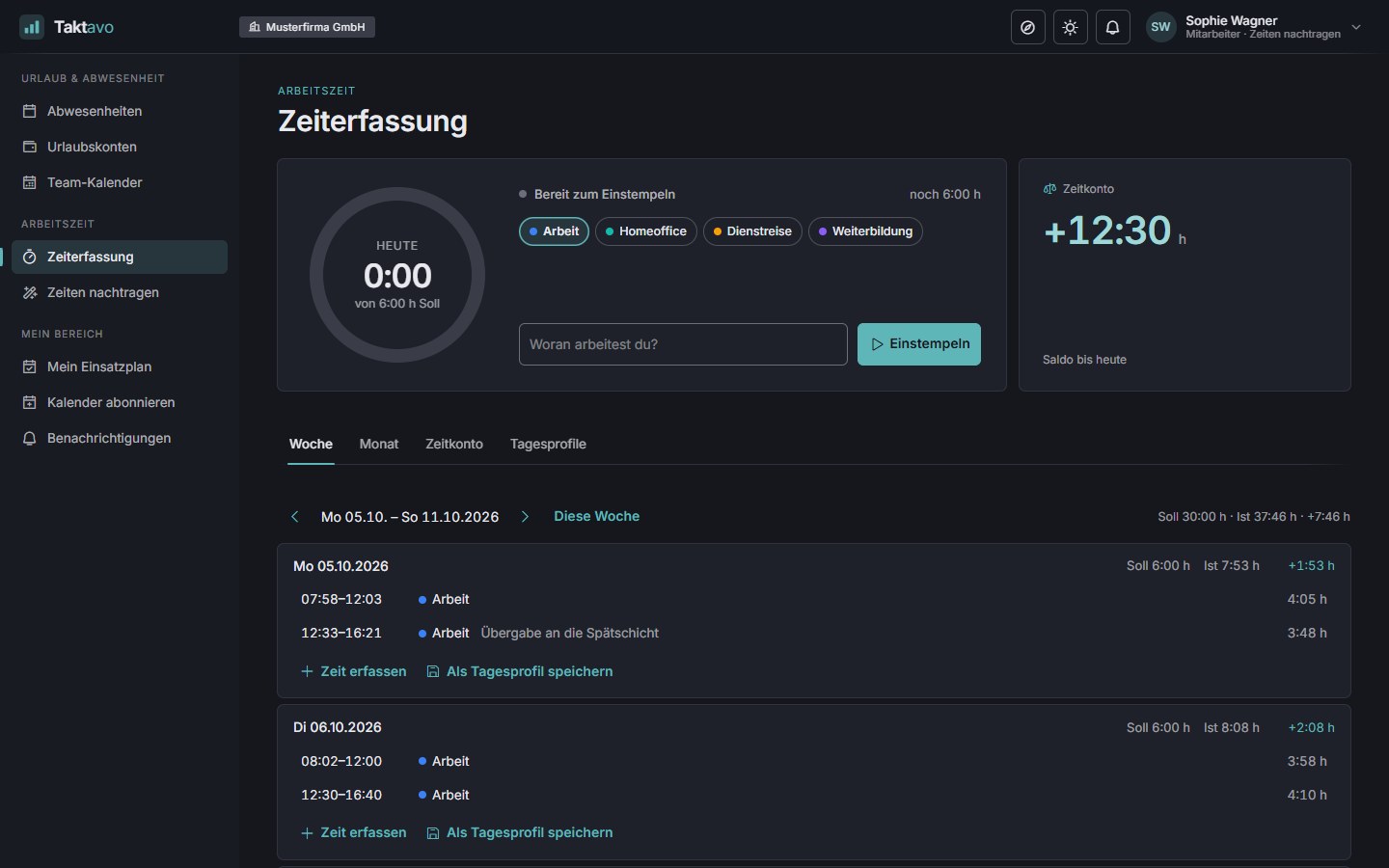
One click to clock in and out, with the running duration and a note on what you worked on. If you wish, the note is mandatory when clocking out.
Time tracking module
Time tracking already knows target hours, public holidays and absences – employees only record what they have worked. The time account keeps count, notices under the German Working Hours Act appear by themselves, and at the end of the month everything goes through an approval.
A week with the time clock: half a day of leave, a day profile on Thursday and a notice about a break.
Features
Whether to the minute at the time clock or added once a week: Taktavo keeps recording short and works out the rest itself.
One click to clock in and out, with the running duration and a note on what you worked on. If you wish, the note is mandatory when clocking out.
Every day with target, actual and difference, public holidays and absences marked. Enter times from–to or as a duration; “Same as yesterday” copies the previous day.
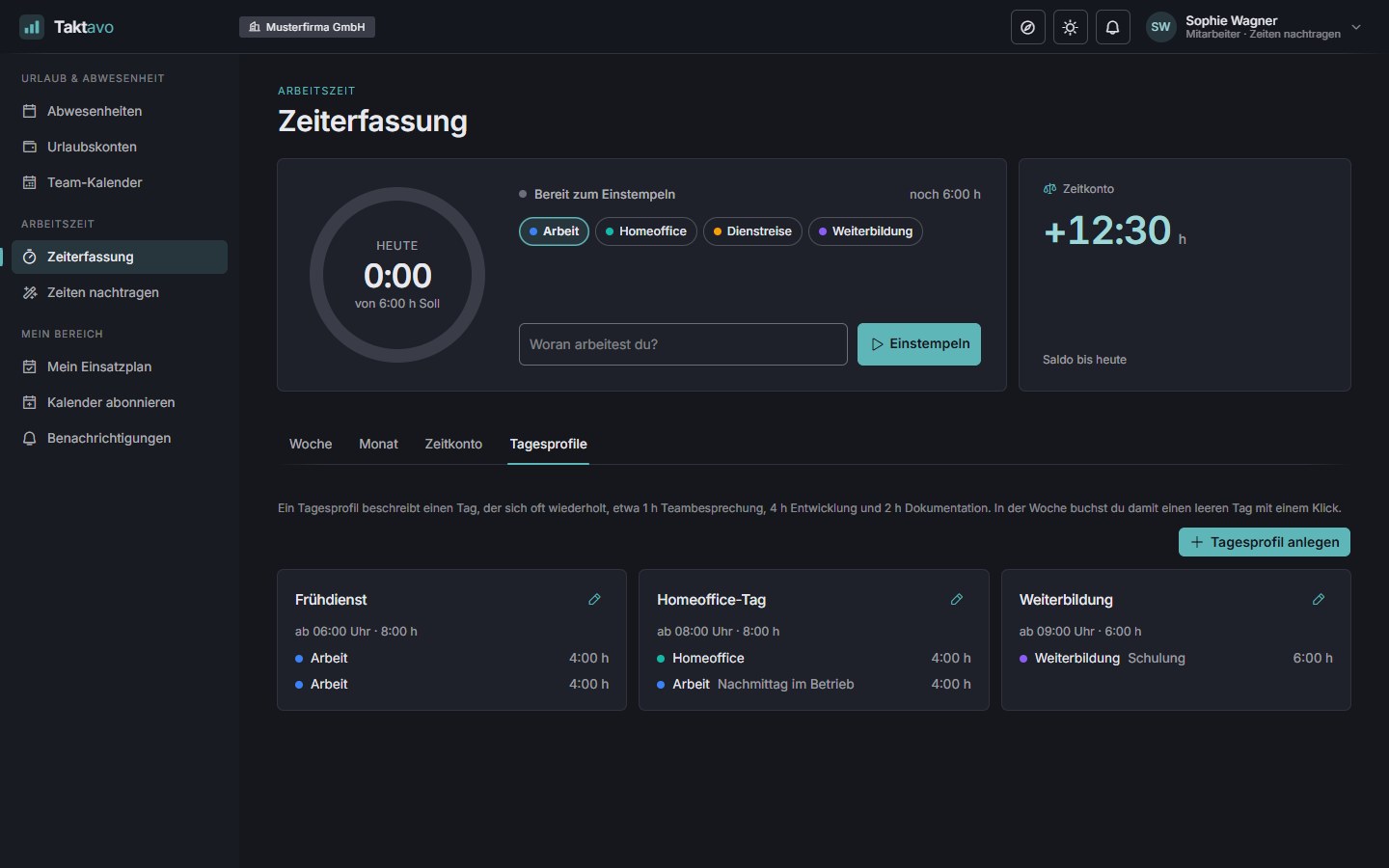
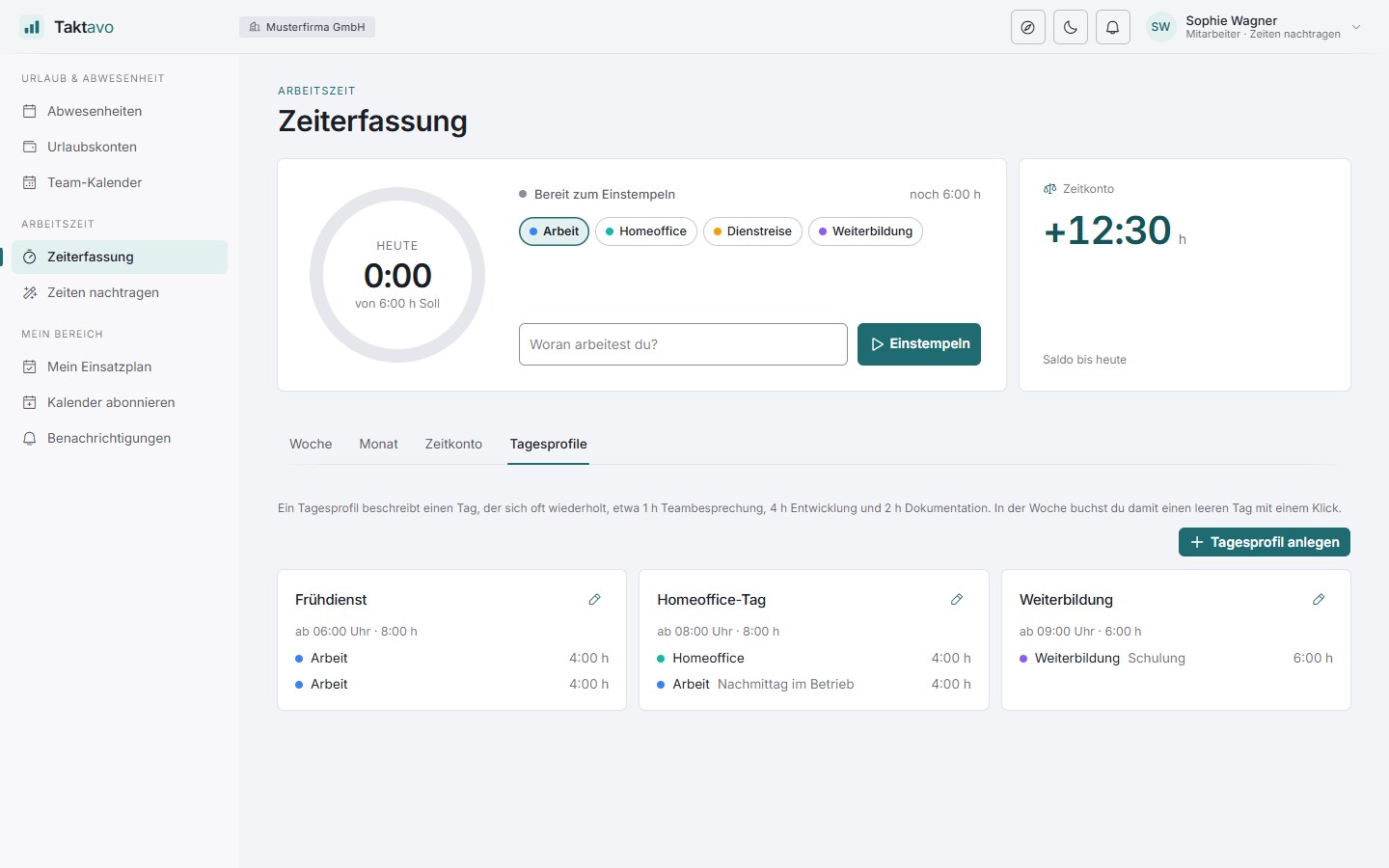
Save recurring routines such as meetings, project work and documentation as a profile and book the day with one click. Taktavo inserts the statutory break where it fits.
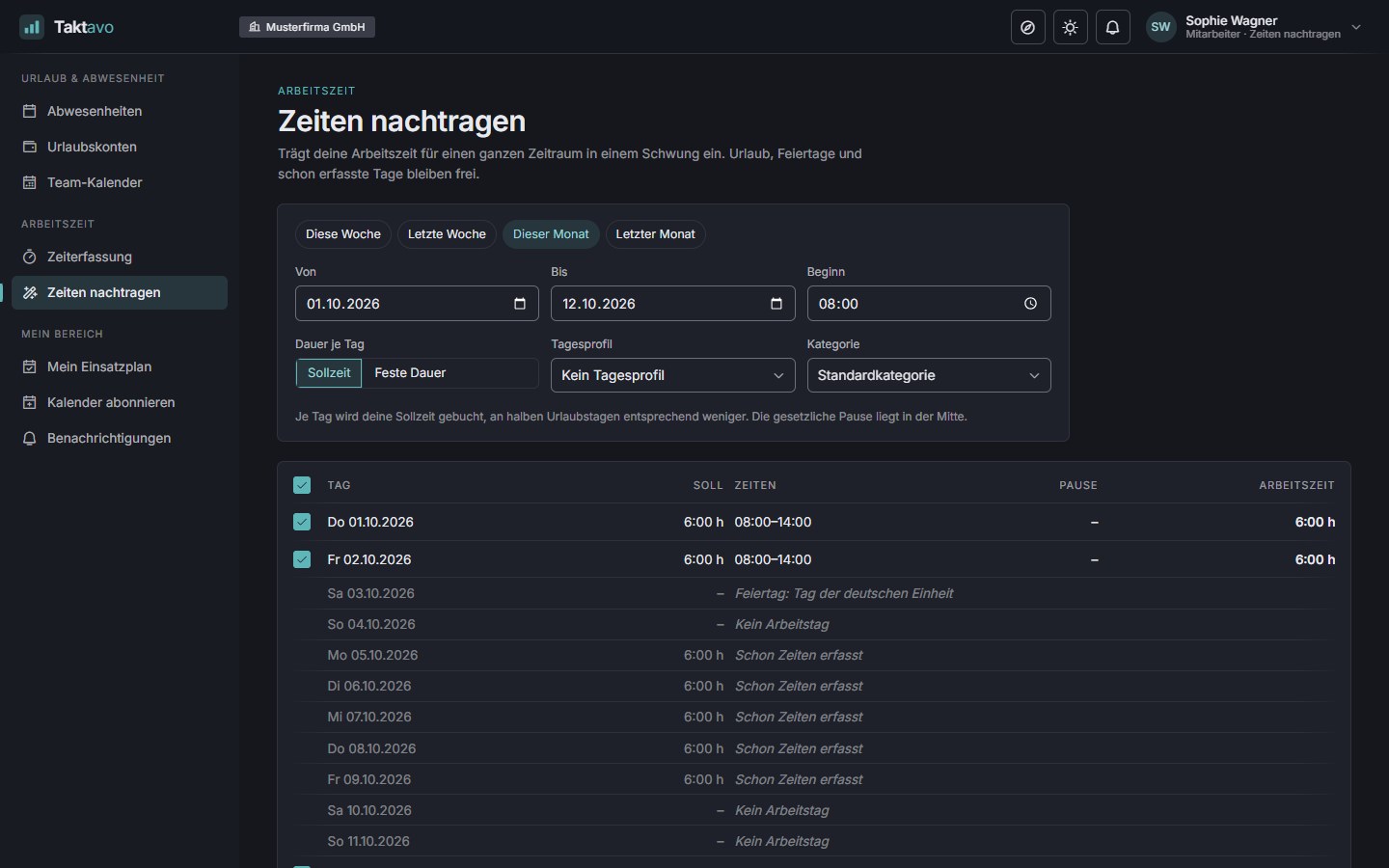
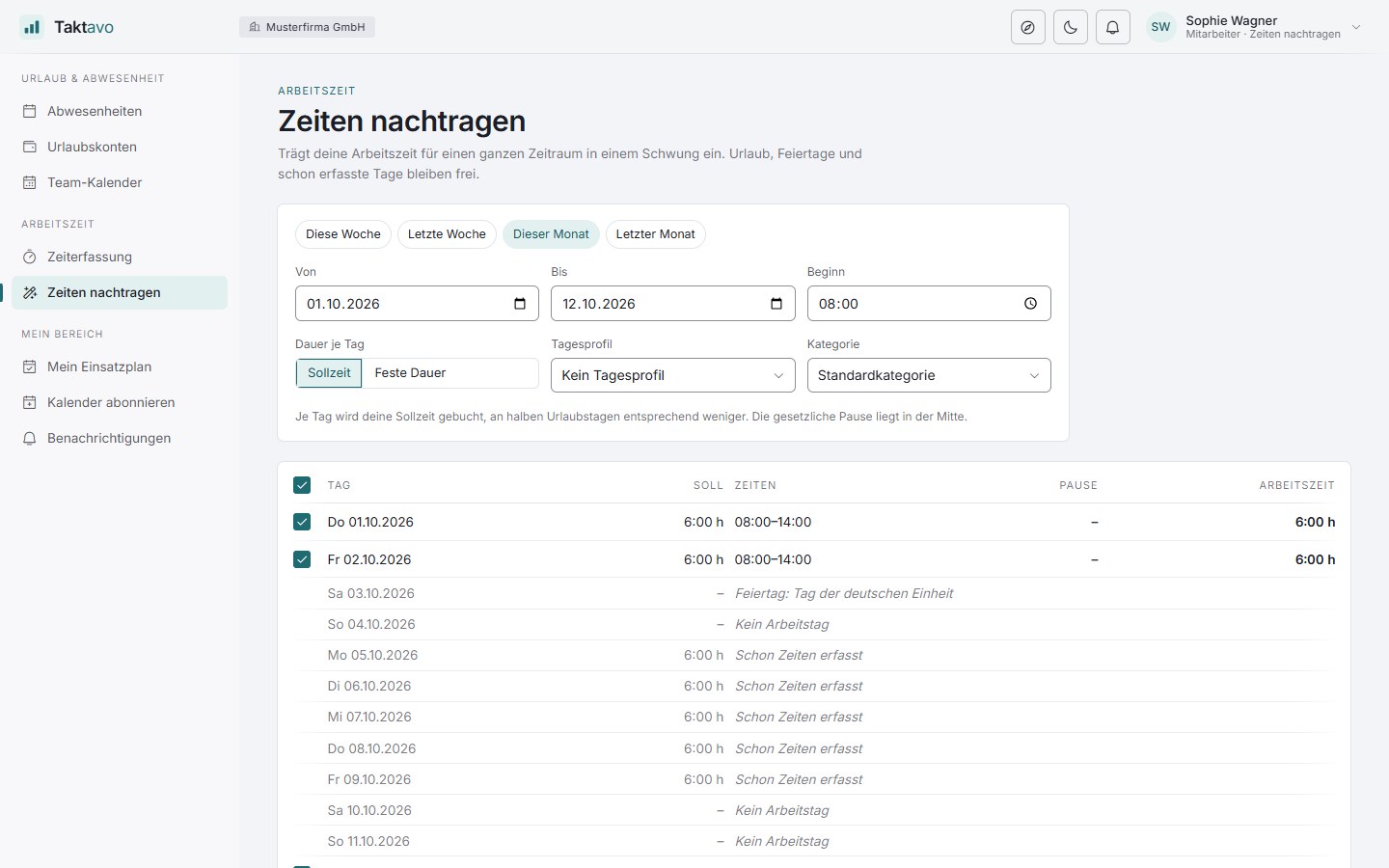
With trust-based working time, add a week or a month in one go. Leave, public holidays and days already recorded stay untouched, and a preview shows everything beforehand. Only with a dedicated permission.
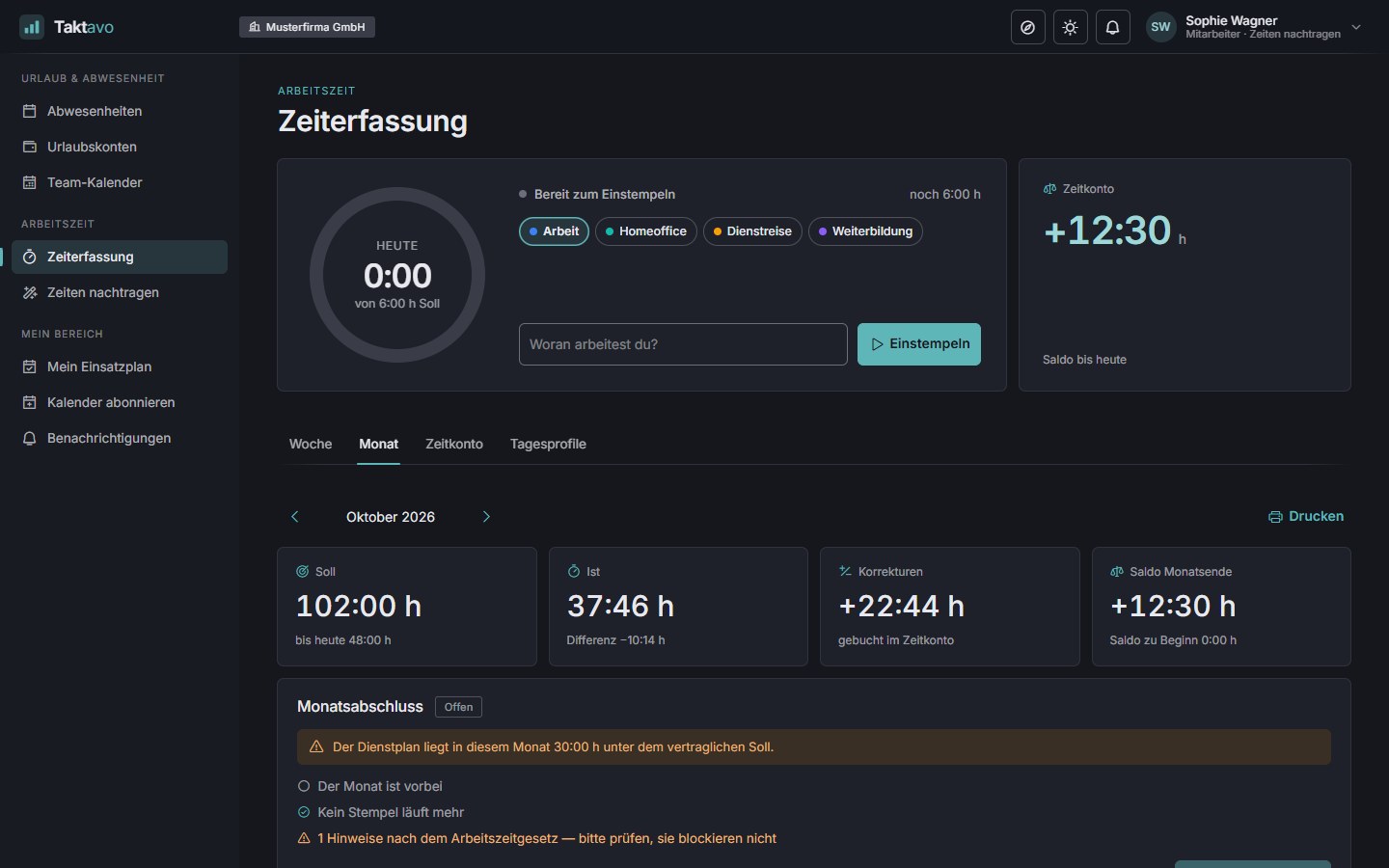
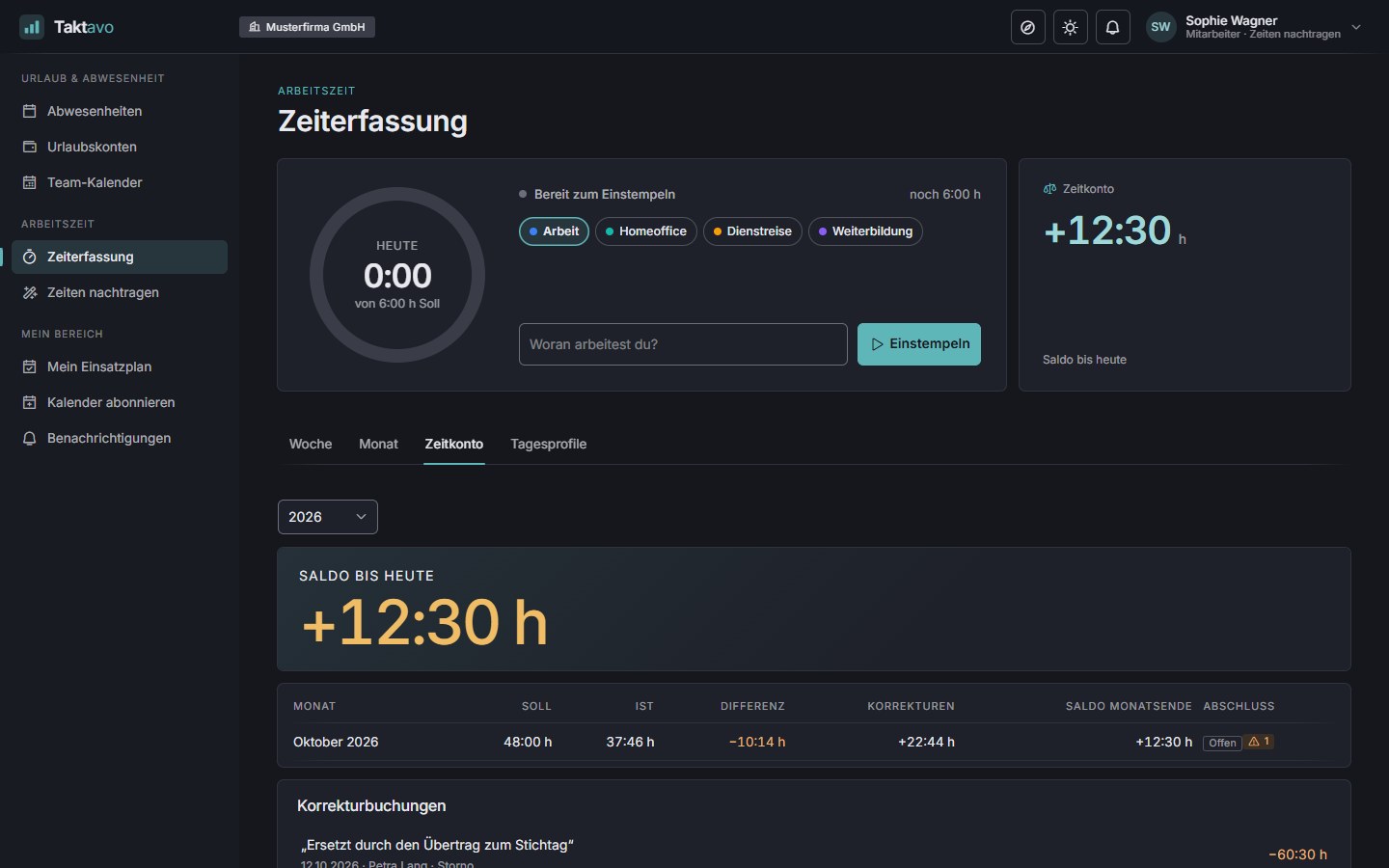
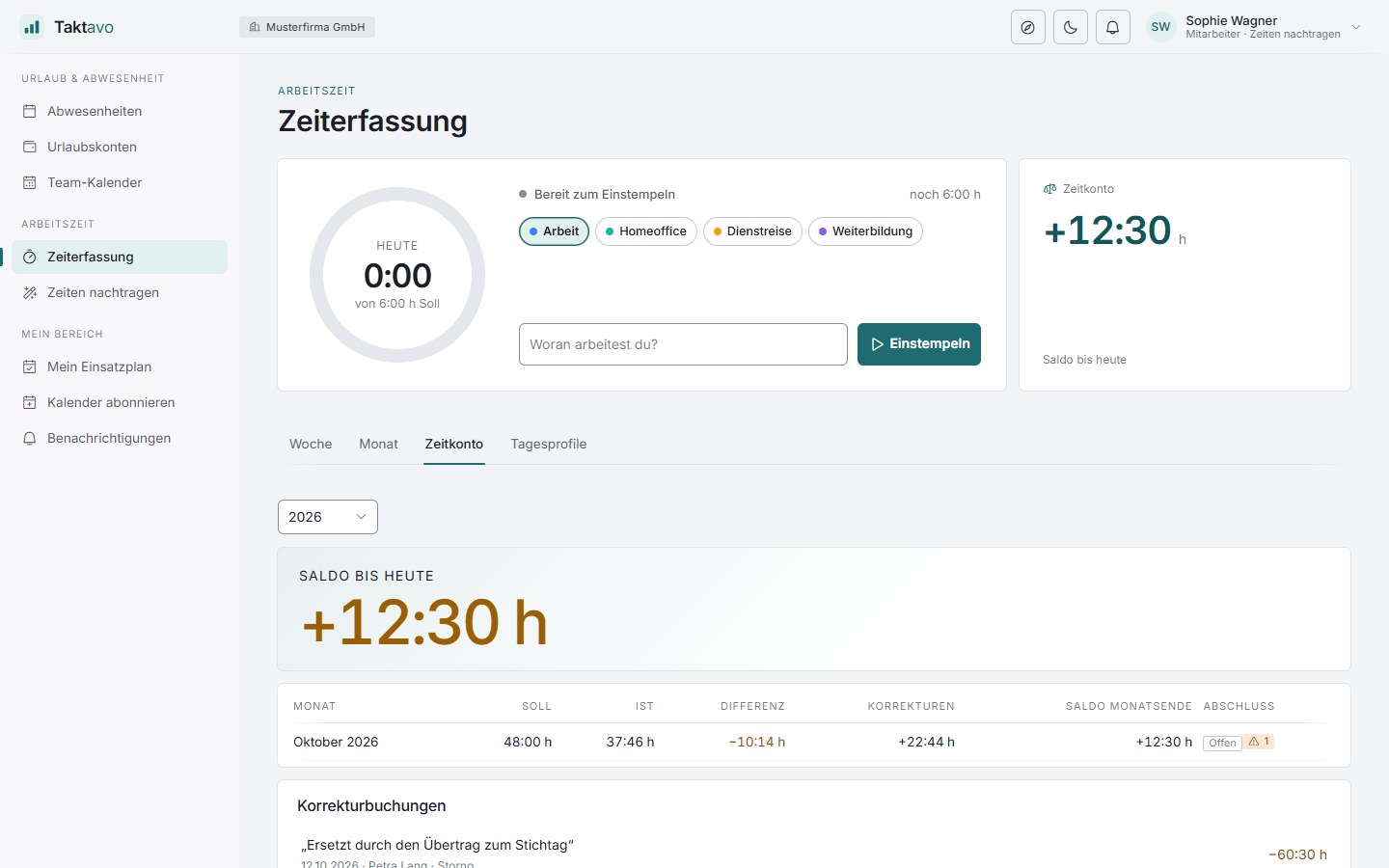
Target, actual and balance per month and year – calculated, not booked. Leave approved retrospectively takes effect immediately; corrections are listed in the journal with a reason.
Public holidays, closure days and approved absences lower the target automatically, half days pro rata. Nobody enters leave as working time.
Missing breaks, overly long days, rest periods that are too short and work on Sundays and public holidays are flagged. Limits can be set per tenant, and breaks deducted automatically if you wish.
Employees submit the month, managers approve it through the approval workflow. After that the values are locked; reopening is only possible with a reason.
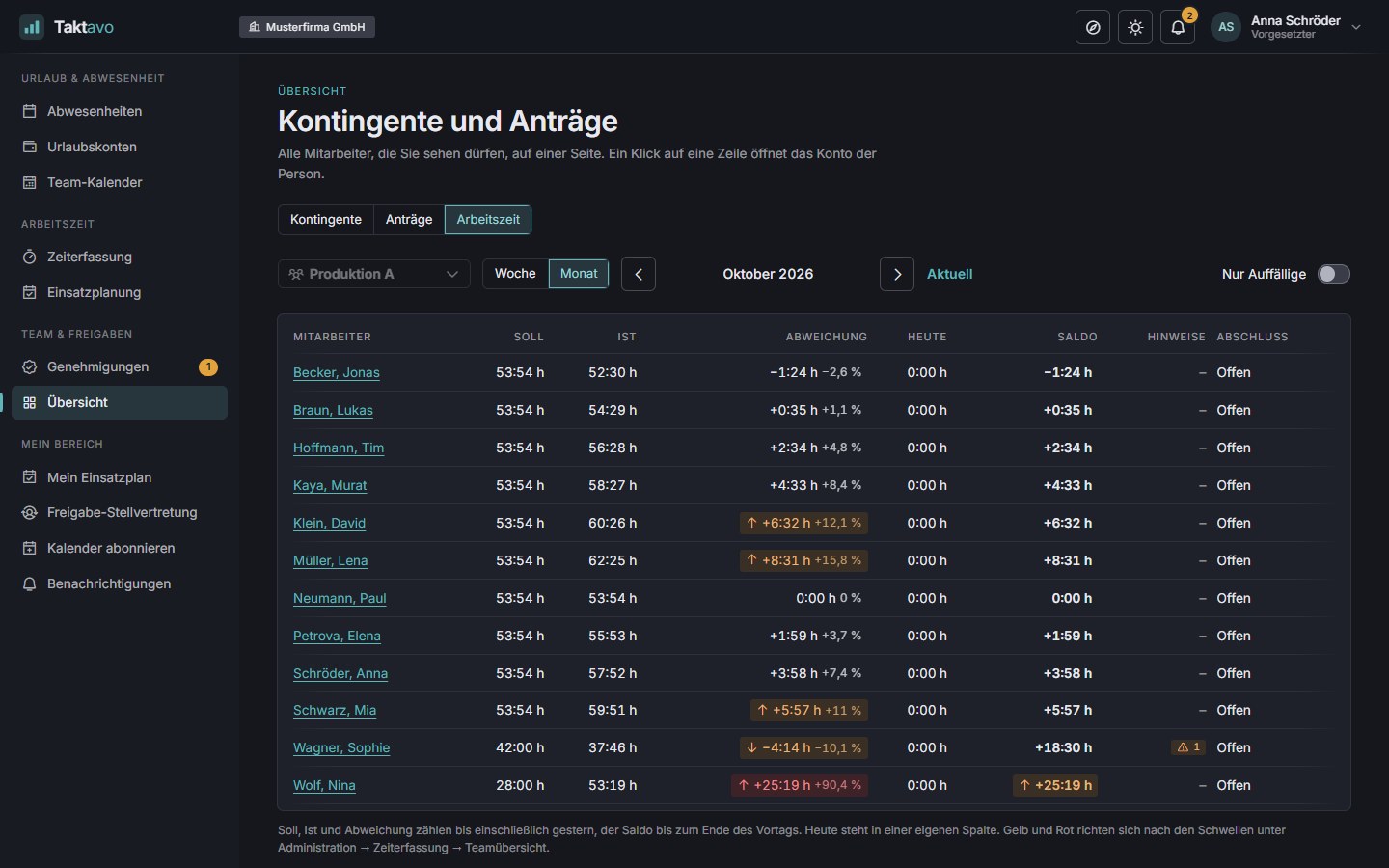
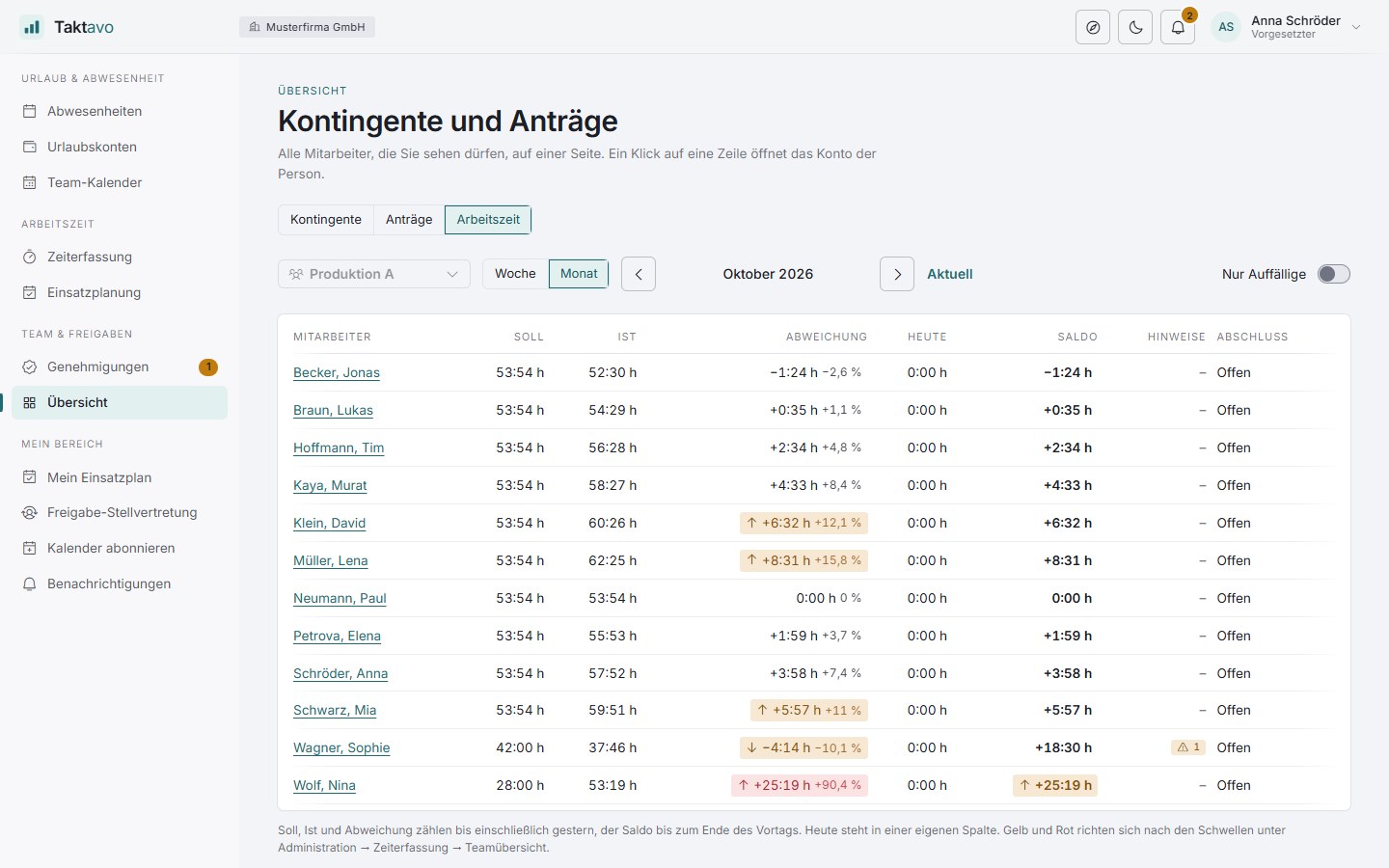
Target, actual and balance of the team for the week or month. Amber and red show who is working far too little or too much – you set the thresholds.
If a clock-in runs unusually long, Taktavo sends a reminder and asks for the actual end time when clocking out. The display doesn’t jump to “+50 hours”.
Work, working from home, business trip, training – or your own categories with a colour. For each category you decide whether it counts as working time.
Time accounts of all employees as CSV or Excel, the monthly overview per person as a print view with a signature line, plus project time for any period.
Since the decision of the German Federal Labour Court of 13 September 2022 (1 ABR 22/21), employers in Germany must record their employees’ working time – even with trust-based working time. With the time clock, day profiles and the assistant for adding time later, this takes only seconds in day-to-day work.
How it works
Time is recorded continuously and checked along the way – and at the end of the month there is an approved, locked balance.
Clock in, enter times in the grid or book via a day profile – every day or all at once at the end of the week.
Taktavo compares against the target and points out breaks, rest periods and maximum working hours.
Once the month is over, employees submit it – approvers see the notices and notes along with it.
After approval, target, actual and balance are locked. The balance carries over into the next month.
Working together
Because absences, times and shifts live in one system, nobody has to copy values from one list to the next.
AbsencesTime tracking
Approved leave, sickness and closure days reduce the day’s target hours. If a request is cancelled, the full target applies again – without a reversal entry.
Shift planningTime tracking
If you wish, the published rota sets the target hours, and the time clock suggests the category of today’s shift.
Time trackingAbsences
Reduce overtime just like leave: request it, have it approved – and the balance drops by the day’s target.
Project time
If you work for several clients during the day, choose the project at the time clock and switch it with one click, without clocking out and back in. The report shows the hours per client, project, person and month for any period.
Budgets, project leads and activity reports for clients: project control in the largest plan.
Project control · in the largest plan
For organisations that bill projects to clients: who may book time on a project, when the budget is running low and what the client receives as evidence.
A project is only offered to those who are meant to book on it. The team on the day of the entry counts; earlier bookings stay valid.
Hours over the whole duration. At 80 and at 100 %, the project leads receive one alert each. Nothing gets blocked.
See the hours of their projects under “My projects”, even without access to all reports. Other people appear individually only within their own area.
Date, person or initials, duration and note for each entry – to print or as Excel for the client. Every retrieval is logged.
Bring in clients and projects as CSV. The preview shows what is new and what changes. As long as one row has an error, nothing is saved.
Type hours per project and day into a grid, without any clock times – for everyone who does not clock in. The daily total matches the week.
As with project time, there are no rankings and no figures per person. Notes only go into the activity report – and the note field says so when time is recorded.
A look inside
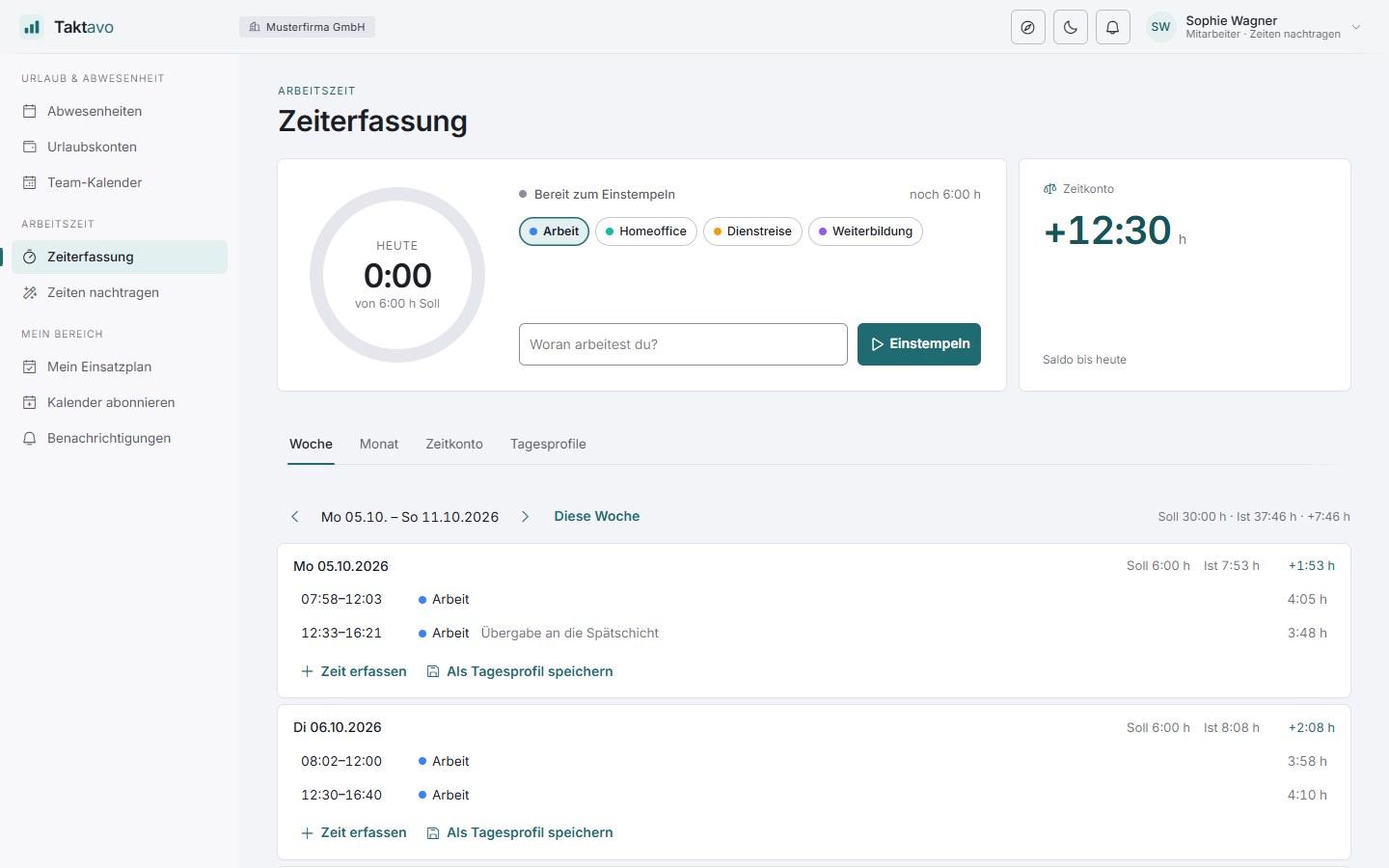
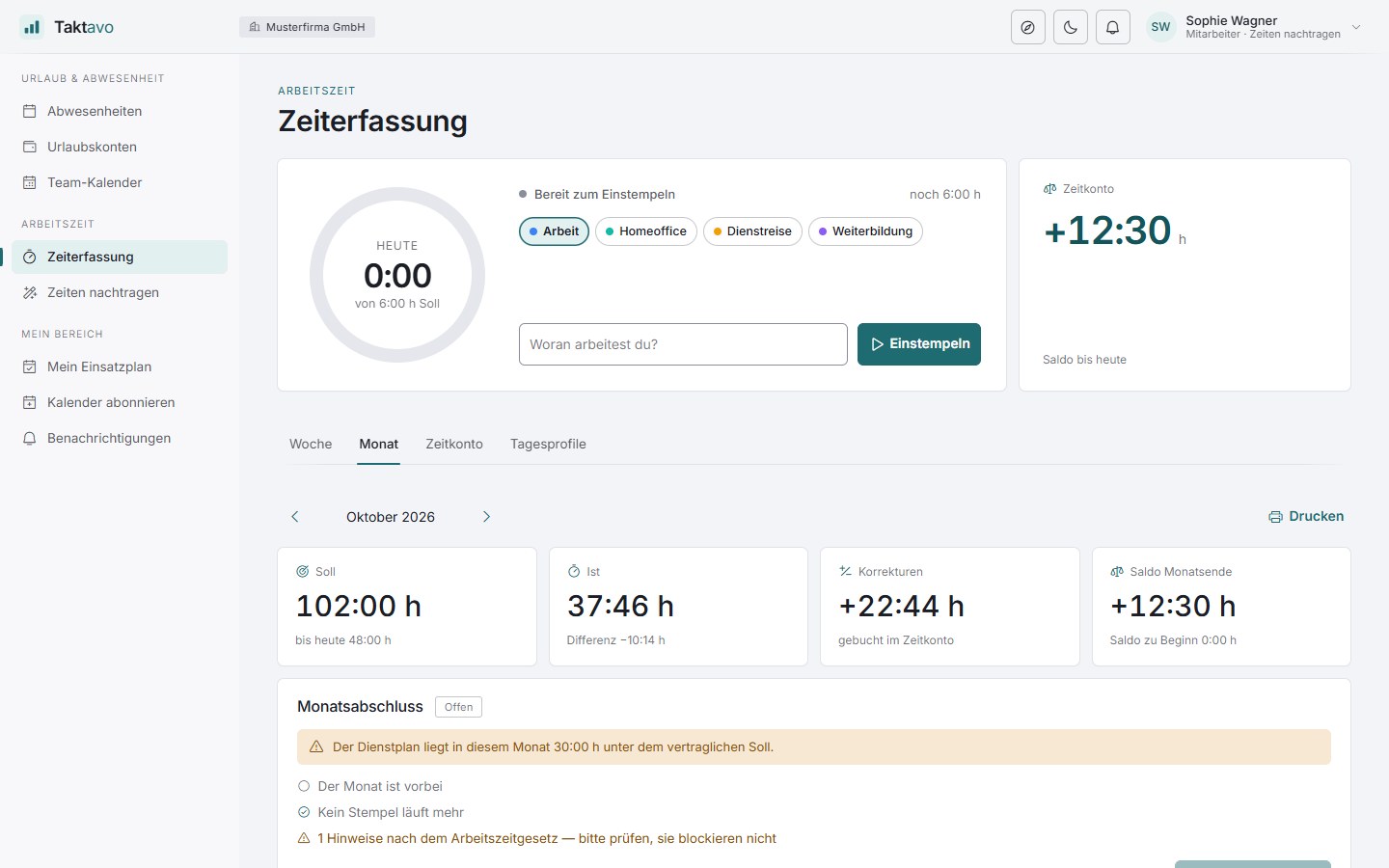
For employees, managers and HR – light or dark.
FAQ
General questions about operation, rollout and connections are answered on the home page.
No. You switch the module on per tenant and set participation per employee in the working-time profile – together with the weekly hours and how they are spread across the days. If the profile changes, the new one applies from the effective date.
Yes. Times can be entered from–to or as a duration, booked via a day profile or – with the appropriate permission – added later for a week or month in one go. The time clock is an option, not an obligation.
Breaks are the gaps between entries. If someone works more than six hours without a 30-minute break or more than nine hours without 45 minutes, a notice appears. If you wish, Taktavo deducts the missing break from the actual hours automatically. Day profiles and the assistant for adding time later insert the break by themselves.
No. The notices on the Working Hours Act inform; they don’t lock anything. Employees see them on the day, managers again at month-end closing.
After an adjustable time – twelve hours by default – the clock-in counts as forgotten. Taktavo reminds the person once, caps the display and, when they clock out, asks until what time they actually worked. Later entries can still be recorded.
You, your managers and HR, within their permissions. Notes appear in the month view and at month-end closing, but in no export – with one exception: a project's activity report for the client. The note field says so when you record time.
Project control is included in the largest plan: access by team or person, budgets with alerts at 80 and 100 %, project leads with their own report, the activity report for clients, importing clients and projects, and the project week for entering hours without clock times. Recording and reporting project time is available in every plan that includes time tracking.
Yes. For each tenant you set the day from which the time account counts. HR books the balance as of that day as a correction with a reason, such as “Carry-over from old system”.
More modules
Leave requests, multi-stage approvals and leave accounts – the basis on which time tracking calculates its target.
More about absencesPlan shifts by demand – with hours and expected balance per person right on the board.
More about shift planningIn a short demo we show you the time clock, time account and month-end closing with your working-time models.